Learn Send messages
Scheduled messages, reminders and status
Send a message later or on repeat, keep appointments, set reminders and schedule WhatsApp Status.
Note: Scheduled items send only while Chrome is open with WhatsApp Web loaded. If the computer is off at the scheduled time, the message sends the next time WhatsApp Web is open.
Schedule a message
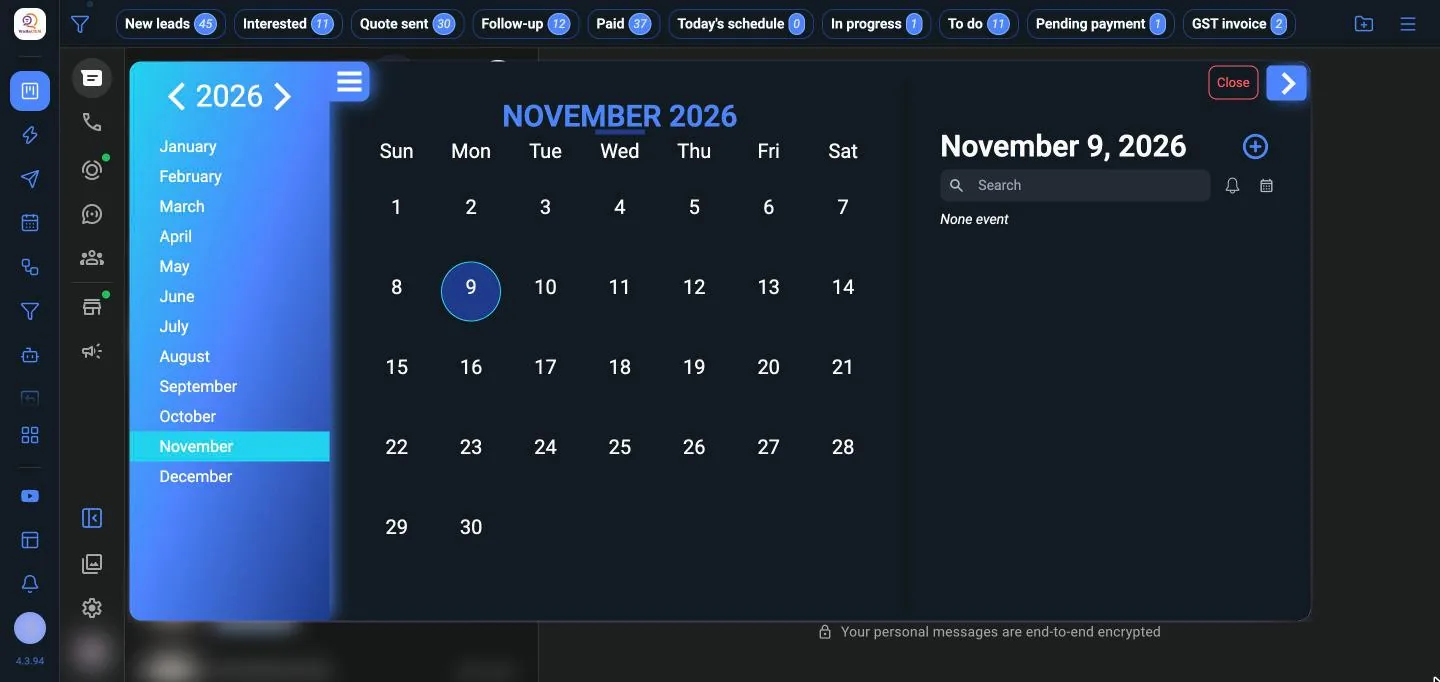
- Open Scheduling Center from the WaBaCRM menu, pick a day, and click +. You can also schedule from inside a chat.
- Choose the type: text, media, audio or a quick reply.
- Pick the date and time.
- To repeat it, set Recurrence: Daily, Weekly, Monthly, Quarterly, Semi-annual, Annual, or Add custom recurrence.
Appointment Center
The Appointment Center lists everything scheduled, for all contacts or just the open chat. It also lists any that failed to send, so you can send them again.
Reminders
A reminder is a note to yourself at a set time, for a task like calling a customer back. Choose Create a Reminder, give it a name, a description and a time. Add to Google Calendar adds it to your calendar too.
Scheduled WhatsApp Status
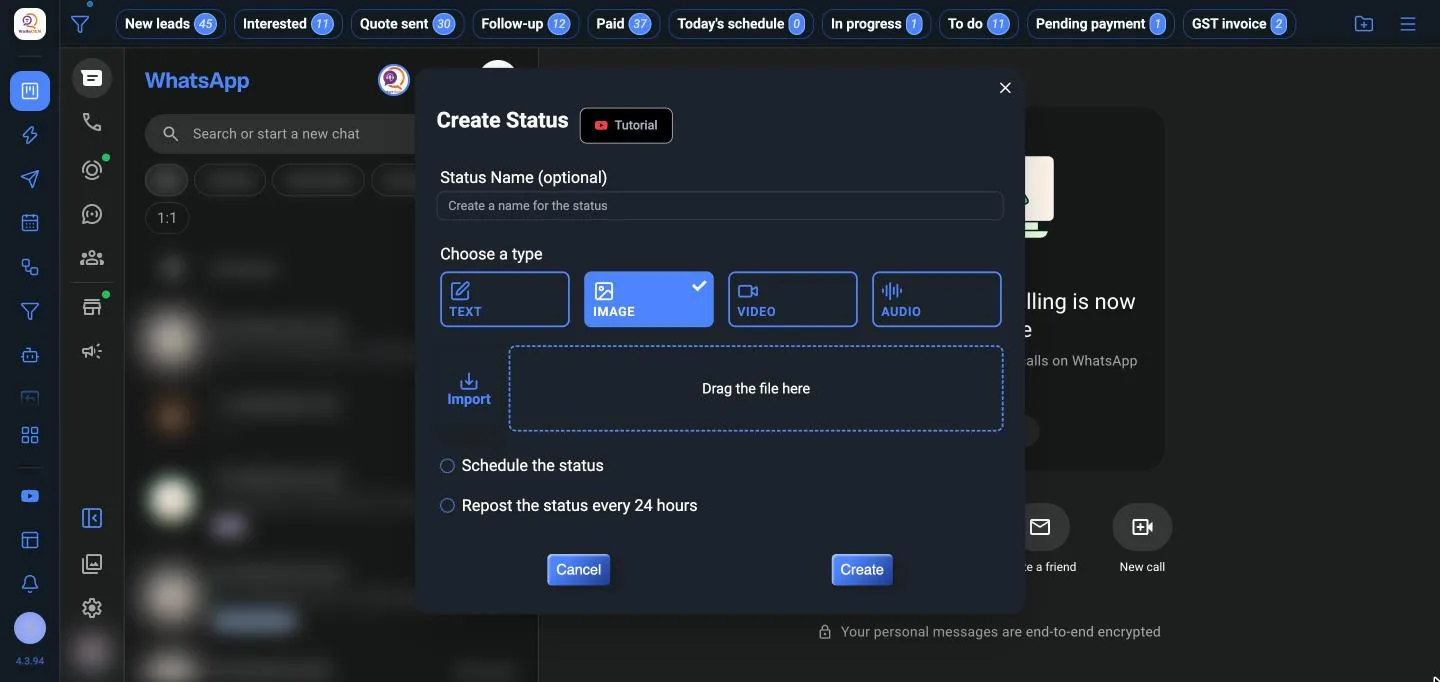
Open Status (under More tools) and click Add. Choose Text, Image, Video or Audio, add the content, then tick Schedule the status to post it later. Tick Repost the status every 24 hours to keep it showing.