
Learn Send messages
Send a bulk campaign
Send one message to many contacts from your own number, with safe pacing and a report.
Bulk Sending sends a sequence of messages and actions to a list of contacts, one at a time, from your WhatsApp number.
Important: WhatsApp restricts numbers that send unwanted messages. Only message people who know your business, keep the pauses below switched on, and start with small lists on a new number.
1. Choose recipients
Open Mass Sending from the WaBaCRM menu. Choose Classic Version for Quick Send, or New Version for the campaign manager. (API Meta Oficial opens the official Cloud API through MeAPI.)
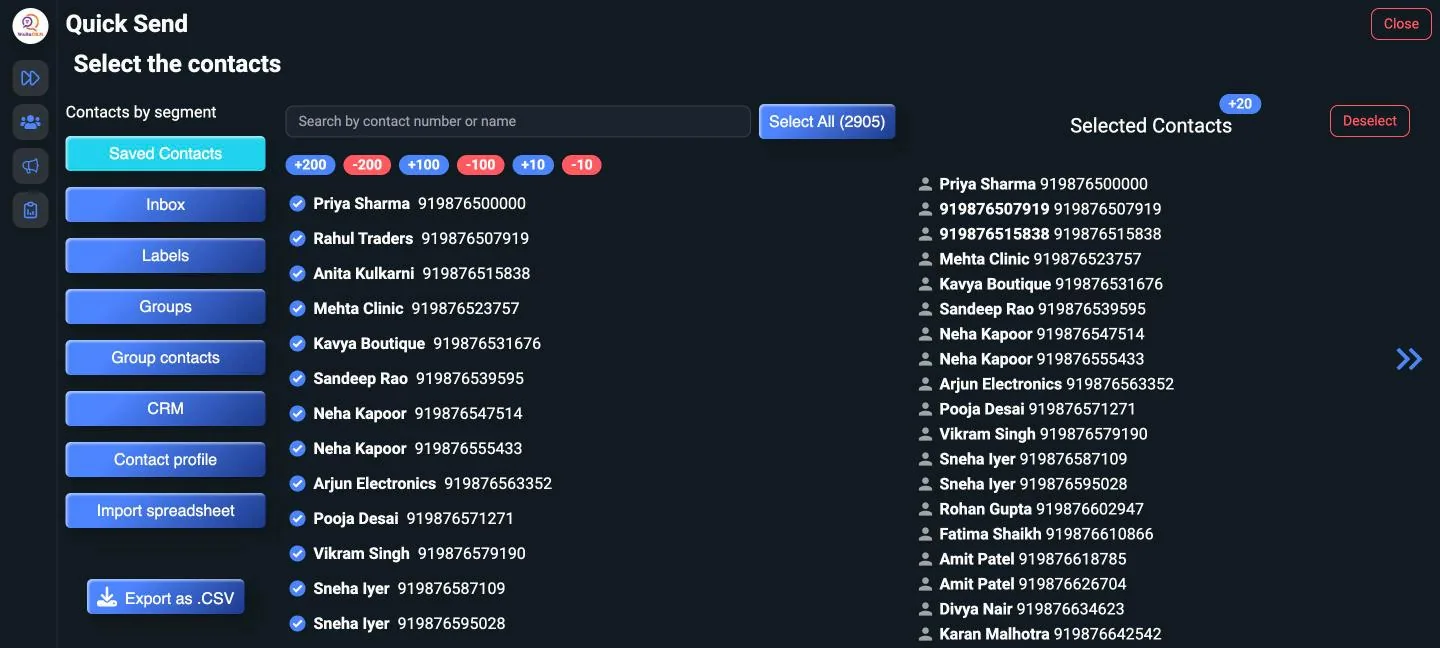
In Quick Send, pick recipients by segment:
- Saved Contacts, Inbox, Labels, Groups or Group contacts
- a CRM tab, or contacts with a Contact profile
- Import spreadsheet: an Excel or CSV file. Choose the column that has the phone numbers. Numbers need the country code, for example
919876543210. - Add contact: type a number. WaBaCRM checks that it's on WhatsApp.
Use the +10, +100 and +200 buttons to tick contacts quickly, and Export as .CSV to download the list. Use Advanced Filtering to narrow the list by Month's birthdays, gender, city, state, lead source, company, or entry and exit dates. Save a list with Create Group to reuse it later.
2. Compose the actions
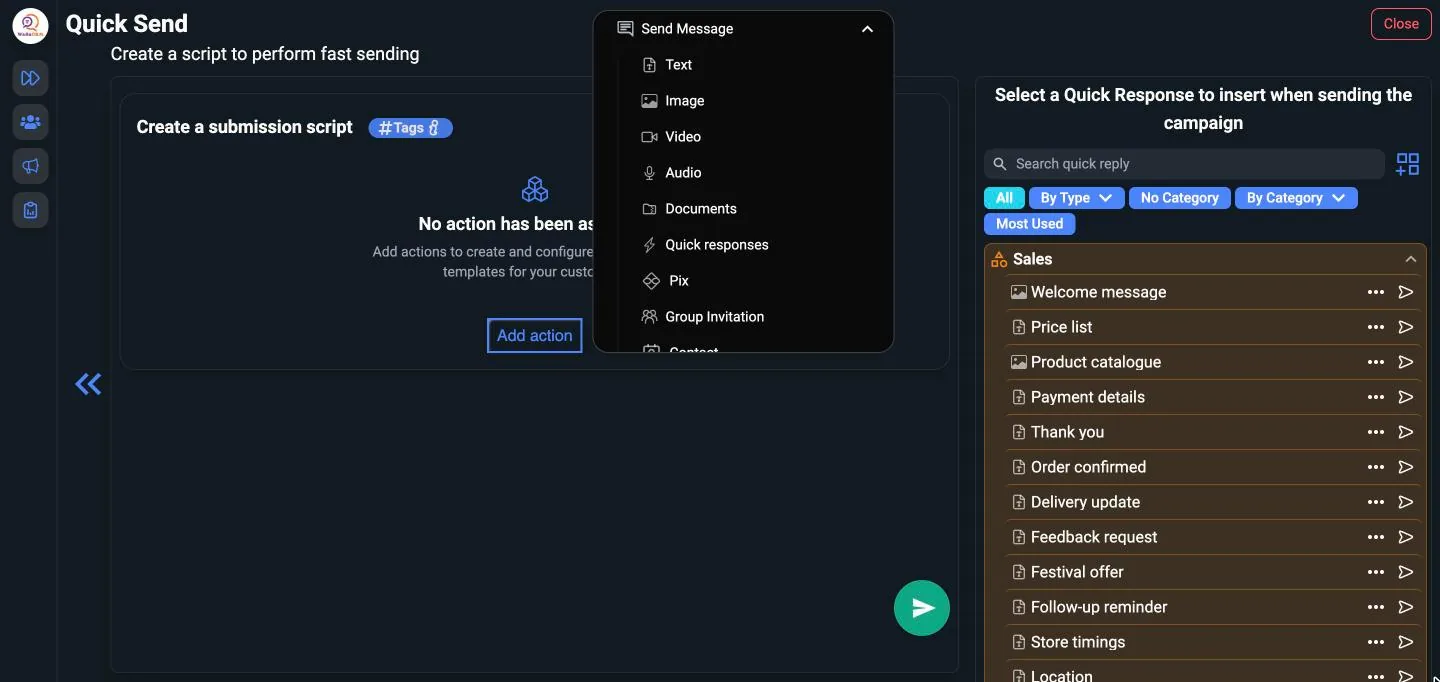
Click the arrow to move on, then build the submission script: click Add action and pick from Send Message, CRM tab, Labels, Timers, Utilities and transfer Service. Actions run in order for every contact. Your quick replies are listed on the right, ready to insert.
| Kind | Actions |
|---|---|
| Messages | Text, image, video, audio, document, sticker, contact card, link with preview, list message, group invite, quick reply |
| Look natural | Typing or recording indicator for a few seconds, wait timer |
| Organise | Add to or remove from a CRM or label, archive, pin, mark as unread, block |
3. Sending settings
| Setting | Suggested start |
|---|---|
| Interval between contacts | 20 to 40 seconds |
| Auto pause every | 20 to 30 sends |
| Pause time | 3 to 5 minutes |
4. Test, then send
- Click Send Test to send the campaign to yourself first.
- Click Start Campaign. Keep the WhatsApp Web tab open while it runs.
- You can Pause, Continue or Cancel Sending at any time. If the tab is closed, choose Continue from where you left off next time.
Reports
View Reports shows each run with the contacts reached, actions sent and errors. Export Report downloads successes, failures or both to Excel, so you can follow up on the numbers that failed.