Learn Send messages
Quick replies, scripts and shortcuts
Save messages you send often, chain them into scripts, and expand short codes as you type.
Quick replies
A quick reply is a saved message you send in one click. It can be text, an image, a video, audio or a document.
- Open Quick reply from the WaBaCRM menu, or open a chat and use the lightning tab in the side panel. Click Create quick reply.
- Give it a title and the message, add media if you like, and pick a category.
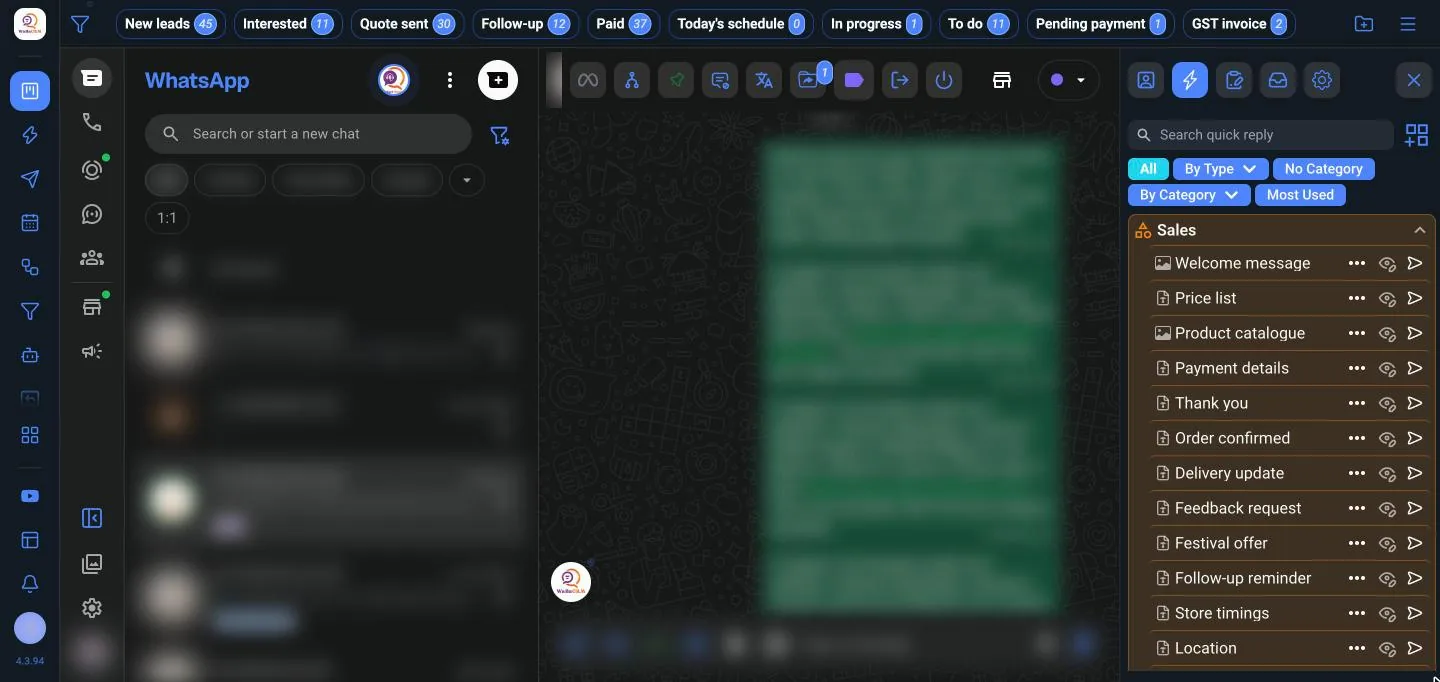
- In any chat, open the quick replies, search or browse By Category or Most Used, and click one to send it. Edit and Send lets you change it before sending.
In a chat, quick replies sit in the side panel, grouped by category. Click the arrow next to one to send it.
Scripts
A script sends several quick replies in order, with a pause between them, for example a greeting, then a price list, then a payment link. Choose Create a script to perform fast sending, add quick replies with Add more quick replies to the script, and drag them into the order you want.
Text shortcuts
Shortcuts replace a short code with full text when you send. Type /price and the customer receives your full price message.
- Open the message box tools and choose Automatically replace text.
- Enter a Shortcut, such as
/hi,/priceor/hours, and the Replacement Text. - Make sure replacements are Enabled.
The replacement happens when the message is sent.
Signature
Sign messages adds your name to each message you send, so customers and teammates know who replied. Set your Agent name under Identification and signature.