Learn Automate
Auto replies and working hours
Reply automatically to first messages, keywords or Meta ads, and send an away message outside your hours.
Auto service replies to incoming chats without a full chatbot. Each auto service has a trigger and a list of actions.
Create an auto service
- Open Auto service from the WaBaCRM menu and click Create.
- Give it an Auto service Name.
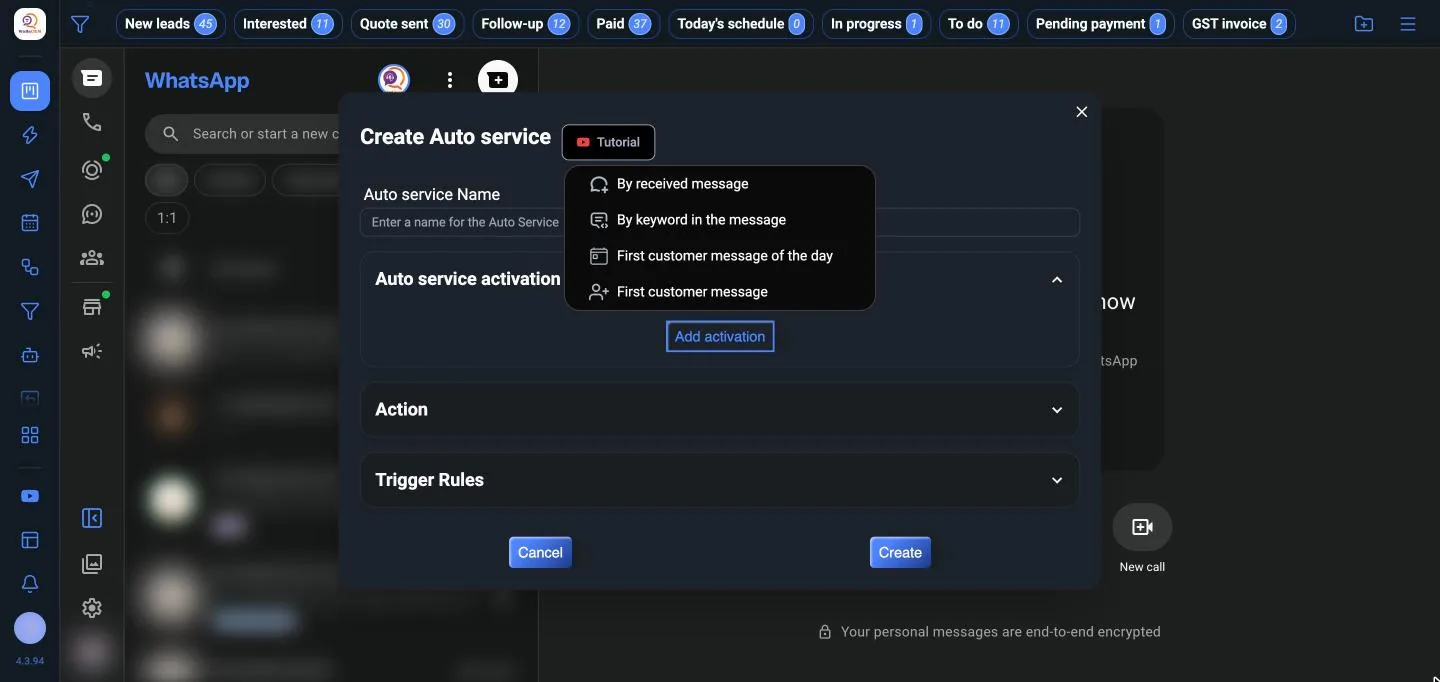
- Under Auto service activation, click Add activation and choose the trigger:
- By received message: any message you receive
- By keyword in the message: type one or more keywords
- First customer message of the day
- First customer message: the first time a contact ever writes
- Under Action, click Add action. Actions run in order.
- Save, and make sure it's switched on.
Actions
| Kind | Actions |
|---|---|
| Messages | Text, image (including single view), video (including single view and round video), audio, document, list, contact card, link with banner, group invitation, quick reply, a script |
| Pacing | Wait, show typing, show recording |
| Organise | Add to or remove from a CRM or label, archive, pin, block |
| Hand over | Transfer the chat to an agent, start a chatbot flow, start a follow-up |
Working hours and away message
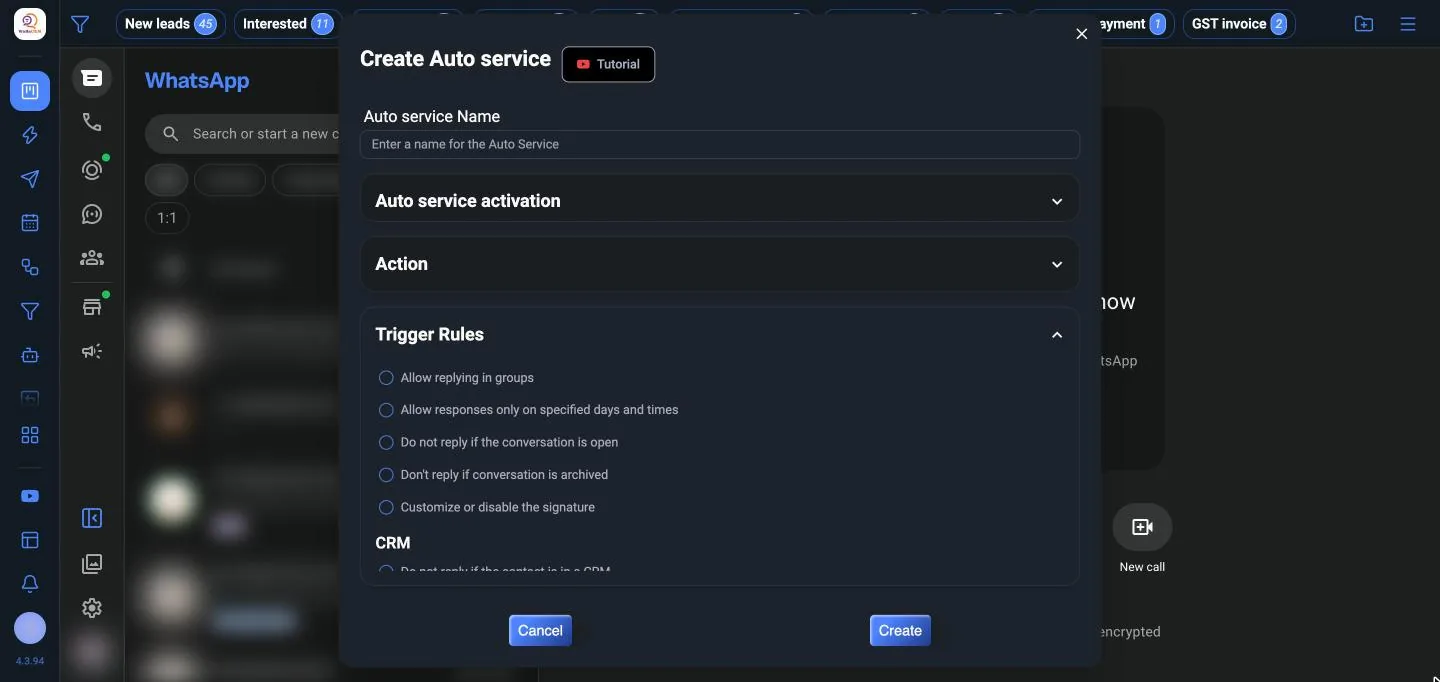
In Trigger Rules, tick Allow responses only on specified days and times and set your hours for each day from Sunday to Saturday. To send an away message outside those hours, create a second auto service for the closed hours.
Rules
Open Trigger Rules to control when it replies: Allow replying in groups, Allow responses only on specified days and times, Do not reply if the conversation is open, Don't reply if conversation is archived, a custom signature, and reply only to (or never to) certain CRM tabs and labels.